
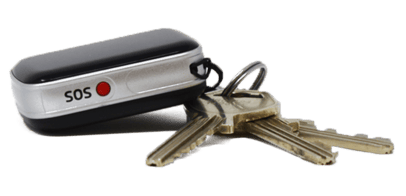
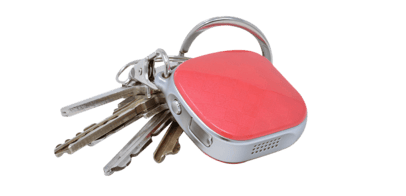
Using this GPS tracker?
Click here
Why is my device offline?
Most offline issues are caused by either the device being switched off or not having mobile signal. You can find out what’s wrong by checking the light on the front of the device.
A device which is offline will say offline rather than static or moving.

- Move the device near a window or go outside.
- If you live in an area with poor signal, try a different location where you know the signal is better.
If there ISN’T a flashing light, this usually means the device is switched off.Please place the device on charge. It should play a jingle and the light on the tracker should turn on to show it’s charging.
If nothing happens when charging:
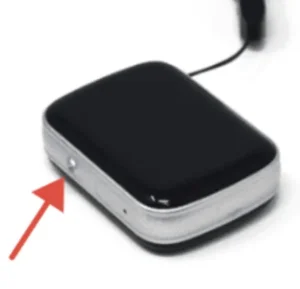
- Use something thin (like a pen) to press the silver button opposite the SOS button

- Then, put the device back on charge for 5 minutes.
- You should hear a jingle and see a solid light – this means it’s charging and it’ll come back on shortly.
How do I test that the tracking is working?
To troubleshoot the tracking issue, please ensure it’s fully charged and take it on a short walk (at least 15 mins) with the tracker set to update every minute.
You can change how often the location updates on the AIBEILE app by tapping More → Settings → Working mode and then select the ‘Tracking every 1 minute’ option and press ok to confirm this.
You can also press the manual update button to help force the device to update.

The reason for this is it gives the tracker ample opportunity to send information frequently and more accurately to the satellites and pinpoint the location of the tracker unobstructed by hard materials such as roofing and car metals.
Why can't I login?
How do I charge the device?
Our tracker comes with two options for charging.
The first is a charging dock, which is easy to use and assemble!
- Firstly, take the micro USB cable and plug the smaller end into the charging dock.

- Take the larger end of the micro USB cable and plug it into your own USB plug.

- Plug the USB plug into a power outlet.
It should look like this so far:

- Place your tracker on the dock, so that the 4 magnetic circles match up with those on the dock. It should magnetise into place.


The second is using the white magnetic charging cable.
- Plug the USB end into your own USB plug
- Place the long end onto the 4 pins on the back of the tracker.
A light will turn on on the tracker when it is charging. The black tracker will have a blue light and the red tracker will have a white light.
Why isn't my SOS button working?
Why is my battery draining so quickly?
I've lost my tracker indoors
Why do I have missed pins when travelling in a vehicle?
Every tracking device available is less accurate indoors (and in vehicles) than outdoors, unfortunately this is just a limitation of the technology which is out there at the moment and is not limited to this tracker.
This is because when a tracker is indoors (or in vehicles), due to the surrounding materials it struggles to get all 3 satellites required to pinpoint an accurate location, therefore it will be less accurate. This is also because the device is constantly reconnecting to a different mobile mast as it travels at high speeds.
If you are having issues with missed pins when in a vehicle, you can enable WiFi tracking to help fill in the gaps while the device is obstructed by the car roof.
- Open the app on your phone.
- Tap on More at the bottom of the screen.
- Go to Settings.
- Tap About Device.
- Press the pencil icon (
 ) in the top right corner.
 - Look for Filter WiFi – tap it so the switch turns grey (this means WiFi tracking is ON).
- Tap the save icon () in the top right corner.
 ) in the top right corner.
 ) in the top right corner.
Please be aware that WiFi tracking is less accurate than GPS, so do not be alarmed if the locations are a bit further out than expected. These will correct themselves when they get a stronger WiFi location or GPS location.
Why does my device take a few minutes to start updating?
Firstly, if your device is taking longer than a few minutes to start updating, please make sure you’re using the 1 minute setting.
Depending on the availability of GPS signal, the device may take a few minutes to re-establish and get regular GPS locations.
If the user takes regular short journeys and needs it to update more regularly, you can enable WiFi locations. This is best used when the user has a WiFi connection at home.
To enable WiFi tracking:
- Open the app on your phone.
- Tap on More at the bottom of the screen.
- Go to Settings.
- Tap About Device.
- Press the pencil icon () in the top right corner.
- Look for Filter WiFi – tap it so the switch turns grey (this means WiFi tracking is ON).
- Tap the save icon () in the top right corner.
Please be aware that WiFi tracking is less accurate than GPS, so do not be alarmed if the locations are a bit further out than expected. These will correct themselves when they get a stronger WiFi location or GPS location.
How do I change/reset my password?
To change your password, simply go to more>settings>change password. You’ll need to enter your current password to change it.
To reset your password, you’ll need to set your contact number. You can do this by doing the following:
- Open the app on your phone.
- Tap on More at the bottom of the screen.
- Go to Settings.
- Tap About Device.
- Press the pencil icon () in the top right corner.
- Enter your phone number in the contact number section.
- Tap the save icon () in the top right corner.
Now, when you need to reset your password, you’ll be asked to verify yourself using this phone number.
If you need to reset your password and you haven’t yet set your contact number, please contact us.